You can understand OpenCV without treating it as magic or memorizing a long list of terms. Start with one simple mental model, connect each part to an everyday example, and then add the technical details that make the system dependable.
The big idea: OpenCV provides tested building blocks for turning images and video into measurable computer-vision results.
Display or save every intermediate image. A visible pipeline is much easier to debug than one final answer.
Why this matters
OpenCV gives programmers practical building blocks for working with images and video. The important skill is not memorizing functions; it is building a visible pipeline that can be checked one stage at a time.
By the end of this guide, you will be able to:
- Load, inspect and save image arrays
- Use colour conversion, blur, threshold and edges
- Measure contours and regions of interest
- Build a camera loop with checks and clear output
The goal is not only to recognize the words. It is to explain the system, predict what it will do, and design a small test that produces evidence.
1. Images are arrays
The question: How does OpenCV represent a picture?
OpenCV loads an image into a matrix-like array. Rows come before columns, and a colour image usually has multiple channels. In common OpenCV Python workflows, colour order is BGR rather than RGB, so conversion matters when using other libraries.
Think of it like this: A spreadsheet cell has a row, column and value; a colour pixel has a row, column and channel values.
A concrete example
Load an image, inspect shape and dtype, read one pixel, then save a grayscale copy.
The flow: Image file → Array → Rows and columns → Channels
A small code example
import cv2 as cv

image = cv.imread("object.jpg")
print(image.shape, image.dtype)
gray = cv.cvtColor(image, cv.COLOR_BGR2GRAY)
cv.imwrite("object-gray.png", gray)
Read it from top to bottom and ask what information enters, what rule is applied, and what result comes out.
Try it yourself
- Create a tiny coloured grid on paper.
- Index three cells as row, column.
- Predict the array shape for height 100, width 200 and three channels.
Quick check — For img[y, x], which coordinate comes first?
The row or y-coordinate comes first, followed by the column or x-coordinate.
2. Build a processing pipeline
The question: Why use several small image operations?
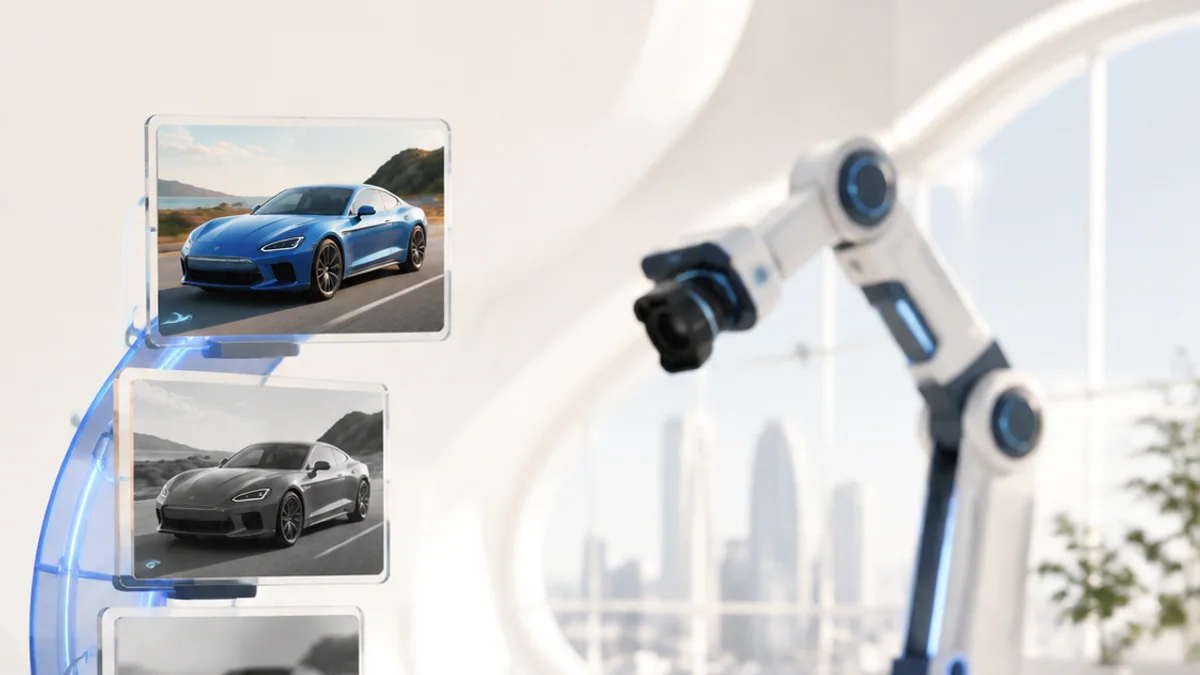
Each operation solves one problem. Colour conversion simplifies channels, blur reduces small noise, thresholding creates a mask, and edge detection finds rapid change. The correct order depends on the scene and desired measurement.
Think of it like this: Preparing a science sample may require filtering, staining and viewing—each step reveals something different.
A concrete example
Convert to grayscale, apply a small Gaussian blur, then use Canny edges to reveal a part boundary.
The flow: Colour → Grayscale → Smooth → Edges
A small code example
gray = cv.cvtColor(image, cv.COLOR_BGR2GRAY)
blurred = cv.GaussianBlur(gray, (5, 5), 0)
edges = cv.Canny(blurred, 60, 140)
Read it from top to bottom and ask what information enters, what rule is applied, and what result comes out.
Try it yourself
- Run or inspect the same image with two blur sizes.
- Record which edges disappear.
- Explain the trade-off between noise and detail.
Quick check — Can excessive blur remove useful information?
Yes. It reduces noise but can also erase small edges and features.
3. Contours and measurements
The question: How can a binary shape become useful numbers?
Contours describe connected boundaries in a binary image. From a contour, software can calculate area, perimeter, centre and bounding rectangle. A region of interest limits work to the part of the image that matters.
Think of it like this: Tracing the coast of an island lets you estimate its boundary and area without studying the whole ocean.
A concrete example
Find contours in a thresholded image, reject tiny areas as noise, then draw a box around the largest remaining object.
The flow: Binary mask → Contours → Filter by area → Measure object
Try it yourself
- Draw three blobs on grid paper.
- Estimate each area.
- Write a rule that rejects small specks but keeps the main object.
Quick check — Why filter contours by area?
It can remove small noise and keep shapes large enough to be relevant.
4. A dependable camera loop
The question: What makes video processing more than a repeated image script?
A video loop must confirm the camera opened, check every frame, process within the available time, show or record results and release resources. Use a measured frame rate and make failure visible rather than silently using stale data.
Think of it like this: A live sports commentator must keep receiving current play, speak on time and report if the feed stops.
A concrete example
Capture a frame, detect an object, overlay the measured centre, exit on a key, and release the camera cleanly.
The flow: Capture → Validate frame → Process and display → Release
Try it yourself
- Write pseudocode for a safe camera loop.
- Add a frame-failure branch.
- Choose one timing measurement to record.
Quick check — Why check the frame-read result?
The camera may disconnect or fail; processing invalid data can produce crashes or misleading results.
Put the ideas together: Create a shape inspector
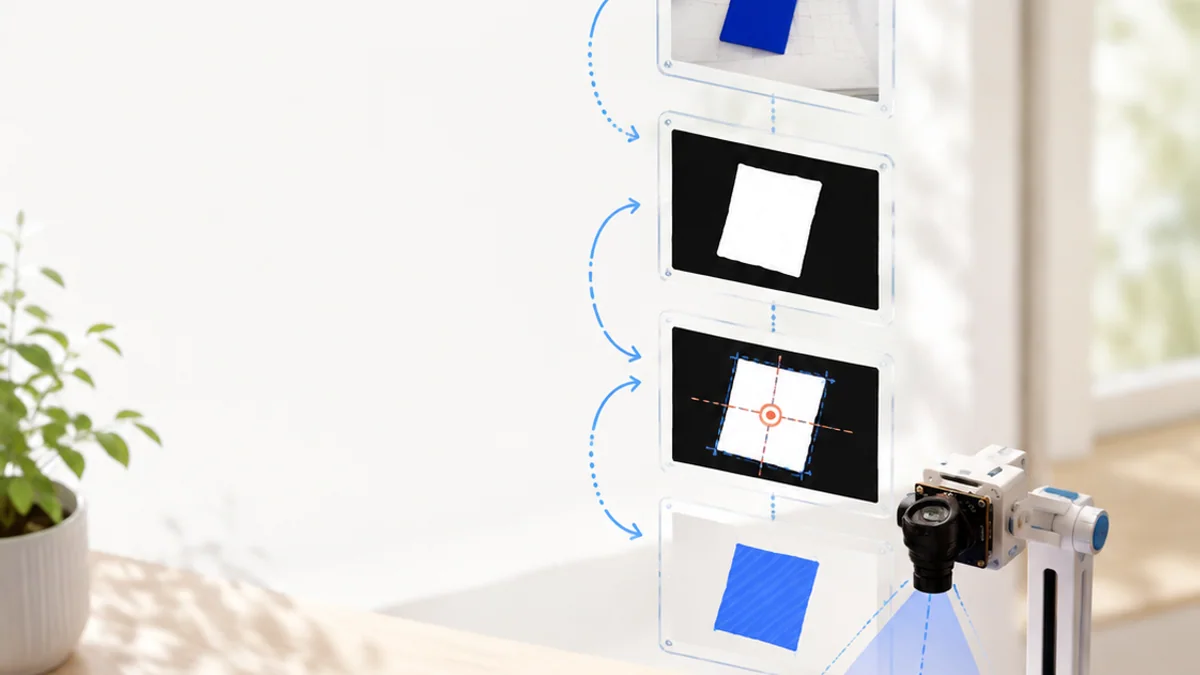
Build or plan an OpenCV program that finds one high-contrast object and reports its centre and area.
Your build plan
- Capture or choose a controlled test image.
- Create and inspect preprocessing stages.
- Find and filter contours.
- Test lighting, rotation, size and no-object cases.
Evidence to keep
- Source code or pseudocode
- Four saved intermediate images
- Measurement table
- Known limitations
An engineer does not stop at “it worked once.” Keep the diagram, record the conditions, repeat the test, and note what changed between attempts.
Important safety and quality notes
- Use non-sensitive example data while learning and testing.
- Check outputs instead of assuming software or a model is correct.
- Add human review whenever a mistake could affect a person or physical equipment.
The examples in this article are educational models. Check component ratings, manufacturer instructions, local rules and appropriate supervision before using real hardware.
Vocabulary without the jargon wall
| Term | Plain-language meaning |
|---|---|
| Array | An indexed grid of values used to store an image. |
| BGR | Blue, green, red channel order commonly used by OpenCV. |
| Kernel | A small neighbourhood used by a filter. |
| Mask | An image that selects relevant pixels. |
| Contour | A connected boundary around a shape. |
| ROI | Region of interest: a selected part of an image. |
What to remember
OpenCV provides tested building blocks for turning images and video into measurable computer-vision results. The professional habit behind the technology is equally important: define the result, observe the system, measure what happened, and improve one thing at a time.
Continue with the full OpenCV learning path for the structured sessions, or explore the sources below when you are ready for deeper technical detail.
Sources and further learning
- Install OpenCV for Python — OpenCV
- OpenCV-Python tutorials — OpenCV
- Image processing in OpenCV — OpenCV